
Introduction
Bookmark feature of Google Chrome Browser help us to save a website URL address for future reference. Usually ,while in our searches we used to copy or remember the URLs of the website. And on the next time when we come back to our browser we will check for the last visited websites in the History. Finding out a specific webpage from the history is not that much easy as there might be a huge list on each date.Here Bookmark Library will be helpful to find the exact link we are looking for. Let us see how can we bookmark a webpage.

Click on the on the Right Top Corner
Go down to select Bookmarks
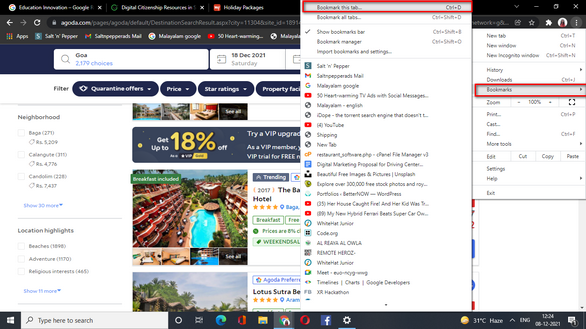
The Webpage on which you selected “Bookmark this Tab” ,will be saved to the bookmark library. Here a popup will open with the provision to save the Bookmark link

By default the Folder to which the bookmark is stored will be “Bookmarks Bar”.We can change the folder or can create a New folder here
Alternatively, Can click on the  image on the Right side of the browser .A small popup will get opened and can select Add Bookmark

An alternative method
How to add webpage to readinglist
Adding your favourite webpages to the Reading List will make our next visits more easy.. We can directly find the webpages listed in the reading list and can continue our browsing from there.
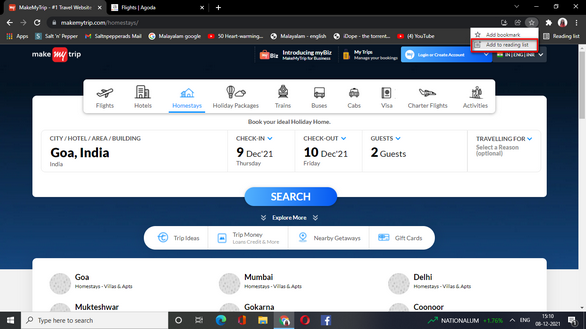
The Reading list will display the links overe there and it makes our readings and references easy .Now, to access the reading list you should ensure the Book marks Bar is visible. You can do that by Settings->Appearence->Show Book marks Bar.
The Short cut is Ctrl+Shift+B

magnificent points altogether, you simply gained a new reader. What might you recommend about your put up that you just made a few days in the past? Any sure?